
Look, you just built yourself a solid gaming rig and slapped Windows 11 on it. Cool. But if you’re sitting there wondering why your FPS isn’t quite where you thought it’d be, there’s a pretty good chance your GPU drivers are outdated or your settings aren’t dialed in right. Honestly, updating drivers and tweaking a few control panel options is probably the easiest performance boost you can get without spending a dime.
I’m gonna walk you through getting the latest NVIDIA or AMD drivers installed and show you which settings actually matter for gaming. No corporate talk, no BS. Just gamer to gamer stuff that works.
Keeping your NVIDIA drivers fresh
If you’re running a GeForce card, keeping those drivers updated is huge. NVIDIA drops these “Game Ready” driver releases all the time, and they’re packed with optimizations for new games plus bug fixes that can seriously improve your FPS or stop those annoying stutters.
Here’s how you do it. Head over to the official NVIDIA drivers page and punch in your GPU model with Windows 11 as your OS. Hit search and grab the newest driver. If you’ve got GeForce Experience installed, it’ll actually auto-detect your card and bug you when there’s an update available. Either way works.
Once it’s downloaded, run that EXE file. You’ll see two options: express install or custom install. Express is quick and painless, but custom gives you more control. If you’re the type who likes things clean, go custom and check that “perform a clean installation” box. This wipes out old driver leftovers, which is super helpful if you’re troubleshooting weird issues or jumping from a really old driver version.
The installer handles everything from there. Your screen might flicker a bit during the process because the GPU resets itself. Totally normal. When it’s done, reboot if it asks you to. One thing I’ll mention, during custom install you can skip GeForce Experience and other extras if you want. Some people call that stuff bloatware and prefer a bare-bones driver-only setup. Your call though.
Windows 11 will sometimes try to update your GPU driver through Windows Update, but those are usually older generic versions. Manually grabbing the latest from NVIDIA directly gets you all the newest performance tweaks and optimizations.
Updating AMD radeon drivers
AMD users have basically the same deal with their Adrenalin software. Keeping current with AMD drivers matters just as much, maybe even more since AMD has this reputation for their cards “aging like fine wine.” They keep squeezing more performance out of their GPUs over time with driver improvements.
Go to the AMD drivers & support page and search for your specific card model. Pick Windows 11 if it asks and download the latest Adrenalin Edition driver package. AMD also has this auto-detect tool that scans your system and grabs the right driver automatically. Pretty handy if you’re not 100% sure which card you’ve got.
Run the downloaded AMD driver package and it’ll unpack itself and open the Adrenalin Edition installer. You might see a “factory reset” option here, which basically does a clean install by removing previous driver versions. Check that box if you’re having problems or if you’re switching from NVIDIA to AMD. For regular updates though, you don’t really need it.
Click through the installation prompts and let it do its thing. Your screen might go black for a second during the driver install. Once it wraps up, reboot if the installer suggests it. After rebooting, open AMD Software Adrenalin Edition to make sure the new driver is active. It usually shows the version number and an “up to date” message somewhere.
AMD’s driver software has a built-in updater too. You can open Adrenalin, hit settings, then system, then software & drivers, and click “check for updates.” Super easy way to stay current. The app downloads and installs everything for you. Either method works, just make sure you’re running the latest version to get all those fixes and performance boosts for new games.
NVIDIA control panel settings that actually matter
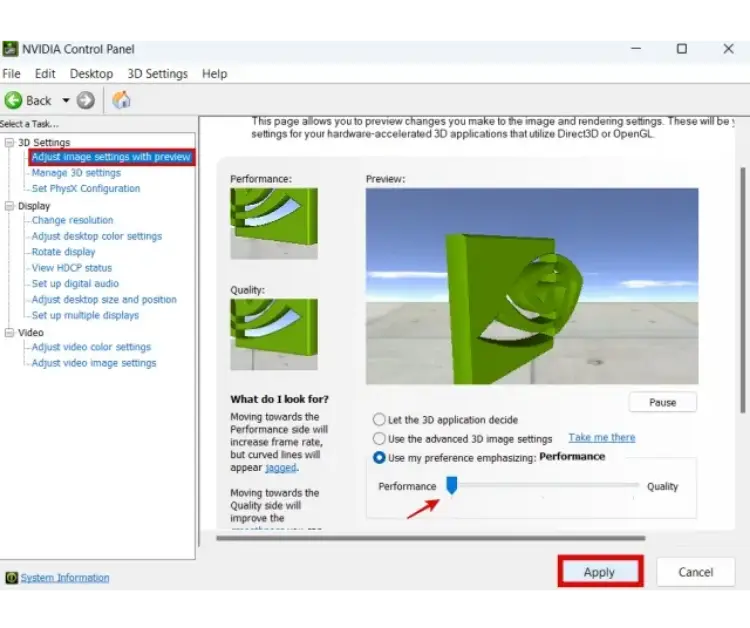
Alright, drivers are updated. Now let’s mess with the NVIDIA Control Panel to squeeze out some extra frames. By default, NVIDIA tries to balance quality and performance, but most of us would rather have raw FPS and quick response times over fancy graphics we barely notice mid-game.
Right-click your desktop and open NVIDIA Control Panel. Under 3D settings, go to “Manage 3D settings.” Here’s what I recommend changing.
- First up, adjust image settings. You’ll see “Adjust image settings with preview” on the main 3D settings page. Switch that radio button to “Use my preference emphasizing: performance” and apply. This tells your GPU globally to prioritize speed over visuals. If you’ve got a monster GPU and actually care about ultra settings, you can leave it balanced, but most people want performance here.
- Power management mode is next. It’s probably set to “adaptive” right now, which means your GPU downclocks when it’s not doing much. Change this to “prefer maximum performance.” This keeps your GPU running at higher clocks during gaming so you don’t get random throttling. Yeah, it uses more power and generates more heat, but on a desktop gaming rig that’s usually not a problem. Laptop users might want to stick with adaptive to save battery when not gaming.
- Low latency mode is a big one. Set this to “ultra” or at least “on.” NVIDIA’s low latency mode limits how many frames the GPU queues up, which reduces input lag. Super helpful in competitive shooters or anything where you need instant response. If a game supports NVIDIA Reflex, that’ll override this setting anyway since Reflex is even more optimized, but having low latency mode on covers everything else.
- Find “Texture filtering – quality” and switch it from quality to “high performance.” This lowers some texture filtering precision to boost FPS a little. You probably won’t notice any visual difference honestly, but it can give you a small performance bump, especially if your GPU is a few years old.
- Anisotropic filtering can be turned off globally for a tiny FPS gain, though modern GPUs handle 16x anisotropic without much impact. Safer bet is setting it to “application-controlled” so each game can apply it as needed. If you’re really trying to maximize frames on a weaker card, turning it off helps a bit, but textures might look slightly blurrier at certain angles.
- Vertical sync needs to be off unless you specifically need it. Vsync caps your FPS to your monitor’s refresh rate and adds input lag plus stuttering in fast games. It’s useful for eliminating screen tearing, but if you’ve got a high refresh monitor or use adaptive sync like G-Sync or FreeSync, you don’t need traditional Vsync. Keep it off for lowest latency and use in-game frame limiters or adaptive sync to handle tearing better.
- If you’ve got a G-Sync monitor, make sure under “Monitor technology” it’s set to G-Sync and “Preferred refresh rate” is highest available. This isn’t directly in 3D settings for everyone but just double check you’re actually using that 144Hz or 240Hz refresh rate.
- Last thing, in the “Configure Surround, PhysX” section on the left panel, set PhysX to use your GPU. Select your graphics card in the drop-down. NVIDIA recommends running PhysX on the GPU for best performance. It usually defaults to auto but good to lock it to your GPU if it wasn’t already.
Most of these settings give you small gains individually. You’re not gonna jump from 60 to 120 FPS just from this stuff, but every little bit helps. More importantly though, they ensure consistency. No random downclocking mid-game, less input lag, smoother overall experience. I noticed slightly better gameplay and more responsive aim in games like CS:GO and Warzone after enabling low latency mode and max performance. It’s about getting the most out of hardware you already paid for.
AMD adrenalin settings for better performance
AMD’s Adrenalin software has its own set of toggles to optimize for higher frame rates and lower latency. Open AMD Software Adrenalin Edition by right-clicking your desktop or finding it in the start menu. Under graphics settings, which might be under a gaming tab for per-game profiles or global graphics for all games, here’s what to tweak.
- Radeon Anti-Lag is crucial for games where input responsiveness matters. This feature syncs CPU and GPU work to reduce lag between your mouse or keyboard input and what shows up on screen. Basically AMD’s version of low latency mode. In GPU-bound scenarios it can cut input latency by up to 40% in some cases, making gameplay feel way snappier. I keep Anti-Lag on for fast shooters like Valorant or Fortnite. If a game has its own low-lag tech or you’re already hitting super high FPS, the difference might be subtle, but it’s still worth enabling.
- Radeon Boost is clever. Turn this on and it’ll dynamically lower rendering resolution during fast motion to improve FPS when it matters most. When you whip your view around quickly, resolution might drop a bit, which you won’t notice in the blur of motion anyway, to keep frame rates high. When you’re steady or aiming, it returns to full resolution for clarity. Smart way to prioritize smoothness over pixels during intense moments. Not every game supports it but many popular ones do, and it can give a noticeable FPS bump without you really seeing any quality loss.
- Enable Radeon Image Sharpening, also called RIS. Set a moderate sharpen strength if there’s a slider. This feature improves clarity of textures and visuals, especially after enabling stuff like Radeon Boost or running at slightly lower resolutions. It has basically no performance impact but makes games look crisper. You get higher FPS from lower resolution rendering plus a sharper image thanks to post-process sharpening. AMD’s implementation is efficient so it’s usually worth turning on.
- Texture filtering quality should be set to performance, same as NVIDIA. This marginally reduces texture sampling quality for a bit more speed. Most people won’t notice the visual difference but every extra frame counts. Also make sure surface format optimization is on, which it usually is by default. This can slightly boost performance in some games by optimizing texture formats with negligible image difference.
- Tessellation mode is there if you’re really scraping for FPS. If you’re playing older games or specific titles that go crazy with tessellation, you can override the tessellation level. In Adrenalin, find tessellation mode and choose override application settings, then set a max tessellation level like 8x or 16x. This limits extreme tessellation that can tank performance, though it’s mostly an issue in certain benchmarks or older titles. For most people, leaving it on AMD optimized or application default is fine, but the option exists if you need it.
- Vertical refresh, or Vsync, should usually be set to off unless application specifies. Same deal as NVIDIA, you don’t want to force Vsync on globally. AMD also has Enhanced Sync which is supposedly a better version of Vsync that reduces its lag drawbacks. You can experiment with Enhanced Sync for a tear-free experience without big lag in some cases, but if you’re maximizing performance and minimizing latency, leave it off and rely on FreeSync, G-Sync, or frame capping instead.
- Make sure Radeon Chill is off if your goal is pure performance. Chill is a feature that saves power by capping FPS when you’re not moving in-game. Useful for lowering temps but it caps your FPS so we don’t want that when chasing max performance. Also check that any frame rate target control, or FRTC, is either disabled or set way higher than your usual FPS. Basically don’t accidentally cap your frame rate.
Keep an eye on AMD’s latest features too. AMD’s been rolling out one-click tuning features like Hypr-RX, which when enabled automatically turns on stuff like Anti-Lag, Boost, and even enables Radeon Super Resolution as a universal upscaler for games that don’t support FSR. These can be neat for a quick “make my games faster” button. If your Adrenalin software has a Hypr-RX toggle or something similar, give it a shot. It’s basically easy mode for instant optimizations across all games.
With these settings, your AMD card is geared for speed. Just like on the NVIDIA side, gains from each tweak might be a few percent here or a couple FPS there, but collectively they make gameplay smoother. Features like Anti-Lag and Boost improve how the game feels too, which is just as important as raw FPS numbers. From my experience using a Radeon RX 6700 XT, enabling Anti-Lag made a noticeable difference in Call of Duty during heavy action scenes. Controls felt more instant. Every bit counts.
What kind of improvement can you Actually expect: fps, smoothness, and latency gains
So you updated drivers and tweaked all the settings. What kind of real-world improvement are we talking about here? It varies obviously, but real-world results from tests and user experiences show this stuff actually works.
Updating from an old driver to the latest can yield surprisingly big FPS boosts in certain scenarios. One report found that updating to a new NVIDIA driver, which fixed a Windows 11 issue, increased average FPS by around 47% in Assassin’s Creed on a high-end card. That was an extreme case where a Windows update had tanked performance until the new driver fixed it, but it proves how much drivers matter. Even without a major glitch, game-ready drivers often improve performance in new games by a few percentage points here and there.
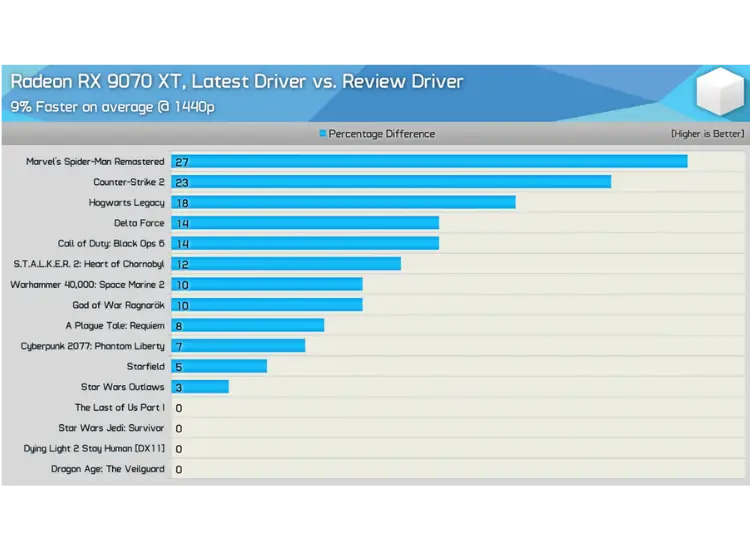
AMD has this reputation for squeezing more juice out of their GPUs over time. A review of RDNA4 GPUs showed that a fresh driver a few months post-launch gave an average 9% FPS uplift across a suite of games, with some games seeing up to 20-27% higher FPS compared to the launch driver. That’s basically free performance just by staying updated. Biggest gains tend to show up in newer or popular titles. Spider-Man Remastered saw around a 27% boost, Counter-Strike 2 got around 23% after driver updates. If you’re playing the latest AAA or esports titles, you definitely want those driver optimizations.
Even in less dramatic cases, a driver update might fix stutters, crashes, or inconsistent frame times. Smoothness can be just as important as average FPS. I had this nagging micro-stutter in Cyberpunk 2077 that disappeared after a GPU driver update. FPS number didn’t change much, but the game felt noticeably smoother. New drivers often include bug fixes for specific games. If you skim the release notes, you’ll see mentions like “fixed an issue where this game experienced stuttering or crashing.” If you’re on an old driver, you could be suffering from a bug that’s already solved.
Latency improvements are huge too. Features like NVIDIA’s Reflex in games or AMD’s Anti-Lag at the driver level can dramatically reduce input lag. This isn’t about raising FPS but about how responsive the game feels. With Anti-Lag, AMD cites up to a 40% reduction in input lag. NVIDIA’s Reflex can often cut PC input latency by 20-30 milliseconds in supported games. Those reductions can literally be the difference between a shot registering or missing in a twitch shooter. By updating drivers, you get the latest latency-reducing tech and game support. Low latency mode on NVIDIA or just improved driver threading can also lower render queue latency even in games without Reflex. The result is your mouse and keyboard actions translate to on-screen results faster, making the game feel more responsive.
To put some numbers on it, one set of tests found that an outdated driver versus a current driver could massively affect certain games. In an extreme example, Red Dead Redemption 2’s FPS more than doubled after updating the graphics driver when it had been neglected for a long time. That’s not typical for every game, but it shows that if you’re running super old drivers, you might be severely bottlenecking your GPU without realizing it. Updated drivers ensure you’re getting full intended performance of your hardware.
The bottom line is, yeah, it actually helps. You might not always feel it in every single game, but keeping drivers fresh and settings optimized prevents you from leaving performance on the table. Higher max FPS, more consistent frame delivery with less hitching, and lower input lag all contribute to a noticeably better gaming experience. If you ever benchmark or just eyeball side-by-side before and after, you’ll typically see an uptick.
Mistakes to avoid
Before wrapping this up, there are some common mistakes or misconceptions when it comes to GPU drivers and settings. Even seasoned PC builders mess these up sometimes, so make sure you’re not accidentally sabotaging your own performance.
- Running outdated drivers is probably the biggest mistake for gamers. That whole “if it ain’t broke, don’t fix it” mentality doesn’t really apply here. Using old graphics drivers means you might miss out on crucial optimizations and bug fixes. Games might run slower or have glitches that a simple update could solve. Sure, occasionally a brand new driver might have a quirk, but those are rare and usually quickly patched. More often, that new driver is boosting performance or adding support for a new game or technology. Don’t wait until something breaks. Update proactively, especially when a big game you play gets a new driver release.
- Installing unnecessary bloat is another thing to watch for. When updating drivers, be mindful of extra software that comes bundled. NVIDIA’s installer by default includes GeForce Experience and other components. If you use those features like ShadowPlay recording or automatic game optimization, that’s perfectly fine. But if you don’t, you can choose not to install them. Some gamers call these extras bloatware and swear that avoiding them helps performance or at least frees up system resources. The difference might be small, but there’s no need to have apps you don’t use. Likewise, be cautious of third-party driver updaters or booster programs. Stick to official NVIDIA or AMD tools. Install what you need, nothing more. A lean setup reduces the chance of background processes hogging CPU or GPU while you game.
- Forgetting clean installs when needed is related to bloat. If you’re switching GPU brands, say from AMD to NVIDIA or vice versa, always uninstall the old drivers first. Use a tool like DDU, Display Driver Uninstaller, in safe mode for a thorough cleanup before installing the new card’s driver. Even for same-brand major updates, if you encounter weird issues, doing a clean driver install can work wonders. Both NVIDIA and AMD installers have options for this. NVIDIA’s “clean install” checkbox, AMD’s “factory reset” option. It’s not necessary every single time you update, but keep it in mind if you see any funkiness after an update.
- Enabling VSync unnecessarily is worth repeating. Don’t just force VSync on thinking it’s helping you. A lot of people turn it on to eliminate tearing, not realizing it can cap their performance and add input lag. If you have a 144Hz monitor and your GPU could push 200 FPS, VSync will hold you to 144 and even cause big stutters if you drop below that. Instead, use adaptive sync like FreeSync or G-Sync if your monitor supports it, or in-game VSync only in single-player games where latency isn’t critical. If you do use VSync, consider enabling triple buffering, which can mitigate some stutter at the cost of a bit more GPU memory usage. The key is don’t hobble your rig’s performance with VSync unless you really need to. Tearing is annoying, but high input lag or choppy frames are worse in competitive play.
- Installing drivers over unstable overclocks is a niche one. If you’ve overclocked your GPU, or CPU or RAM, sometimes a new driver can behave a bit differently and expose an unstable overclock. If you update drivers and suddenly get crashes, consider that your overclock might need tweaking. It’s not super common, but I’ve seen people blame the “bad driver” when in fact their overclock was borderline stable and the new driver pushed the GPU a tad differently. Test with default clocks if you suspect this.
- And of course, always reboot after driver installs, even if not prompted. A reboot ensures everything is initialized properly. Also, don’t ignore the control panel or Adrenalin settings we went through. Leaving everything at default might be okay, but you could be missing easy gains. It’s a mistake to assume the driver’s default is always optimal for gaming. A few minutes customizing can pay off in smooth gameplay.
Wrapping it up
Updating your GPU drivers and tweaking settings isn’t the most glamorous part of PC gaming, but it’s one of those low-hanging fruits for performance that every enthusiast should do. Think of it like changing the oil and tuning the engine in your car. It keeps your machine running at its best. Payoff can be higher FPS, smoother visuals, and a snappier experience that makes your games more enjoyable. Plus, it’s basically free performance. You already bought the hardware, so why not let it run at its full potential?
The best approach, in my opinion, is to make a habit of checking for driver updates maybe once a month or whenever a big new game comes out that you plan to play. It only takes a few clicks. Skipping several updates can cost you a lot of performance in the long run. The same goes for those control panel settings. Set them once and you’re done, with permanent benefits every time you play.
So there you have it. A straightforward guide to keeping your GPU in top shape on Windows 11. Now go enjoy those extra frames. There’s nothing quite like the feeling of a game that was chugging at 50 FPS now running at a smooth 60+ because you took the time to do some updates and tweaks. Happy gaming, and may your framerate be high and steady.


[…] think. Both Nvidia and AMD release game-ready drivers that include optimizations for new releases. updating your drivers and tweaking Windows 11 settings can genuinely add a few frames and reduce stuttering. Windows 11 game mode is generally fine to […]
Great point keeping your GPU drivers up to date is one of the easiest free performance wins out there. both Nvidia and AMD do a solid job with game ready optimizations. and yes, Windows 11 Game Mode is perfectly fine for most setups. Those small tweaks really do add up! Thanks for sharing this with our readers