
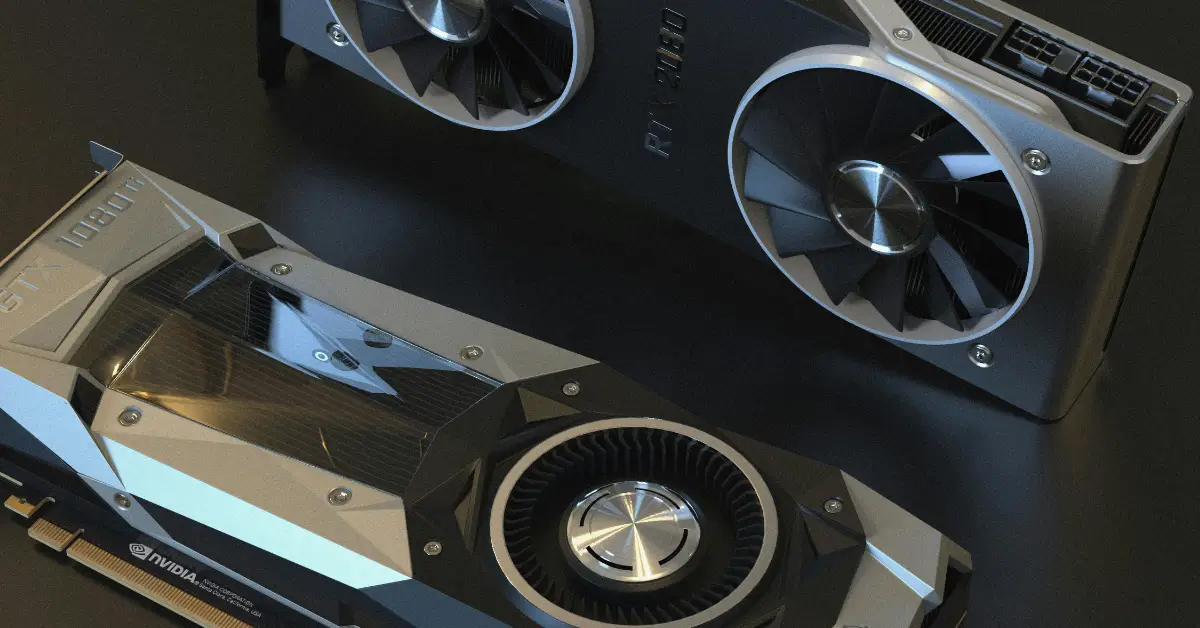
Why Overclock Your GPU
Gently overclocking your graphics card can boost your FPS and let you crank up visual settings without buying new hardware. Basically, free performance.
But here’s the thing – overclocking beyond what your GPU can safely handle will raise temperatures and risk crashes or throttling. You need to be careful and methodical about it.

Every GPU is different even if they’re the same model. Silicon lottery means some chips overclock better than others. You have to find the sweet spot for your specific card. Done right, though, overclocking is generally safe and gives you a noticeable performance bump.
We’re gonna walk through this step by step so you don’t accidentally brick anything or cook your card.
Prepare Your System Before Touching Anything
Update Your Drivers
Install the latest GPU drivers from NVIDIA or AMD and make sure Windows is fully updated. Outdated software can cause weird stability issues when you start pushing hardware limits.
Go to Device Manager and check for driver updates. Also, hit Windows Update and install everything. You want a solid foundation before you start tweaking.
Monitor Baseline Performance
Run a benchmark at stock settings first so you know where you’re starting. Use something like 3DMark, Unigine Heaven, or just run your favorite game’s built-in benchmark.
Record your starting FPS and temperatures. This is your baseline. After overclocking, you’ll compare against this to see if you actually gained anything.
Check Cooling and Power Supply
Make sure your case has decent airflow. If your GPU is already running hot at stock settings, overclocking will make it worse. Add case fans if needed or clean out dust.
Your power supply needs headroom too. Overclocking increases power draw, especially when you raise the power limit. If your PSU is already maxed out or cheap and sketchy, don’t push your luck.
Good cooling and a solid PSU are not optional. They’re requirements for safe overclocking.
Learn MSI Afterburner Basics
Install and Open Afterburner
Download MSI Afterburner for free from MSI’s website. It’s the most popular overclocking tool and works with NVIDIA and AMD cards. Other tools exist, but Afterburner is tried and true.
Open it up and you’ll see a bunch of sliders. Don’t panic. We’ll go through each one.
Key Sliders You Need to Know
- Power Limit: This lets your GPU draw more power. You’ll usually slide this up 10 to 20 percent to give your card headroom to boost higher.
- Temp Limit: Controls when your GPU starts thermal throttling. Set this to maximum so it doesn’t throttle too early while you’re testing.
- Core Clock: This raises your GPU engine frequency. It’s the main overclock slider that makes your card run faster.
- Memory Clock: Raises your VRAM frequency for higher memory bandwidth. Games that are memory intensive benefit from this.
- Fan Speed: You can manually control fan speed or set a custom fan curve. Useful for keeping temps down during stress testing.
Step by Step Overclocking Process
Step 1: Raise Power and Temp Limits First
Before touching core or memory clocks, max out your power and temp limits. Slide power limit to plus 10 or 20 percent depending on what your card allows. Crank temp limit to max.
This gives your GPU permission to draw more power and run a bit hotter before throttling. Hit apply.
Now bump the core clock by just plus 50 MHz. Tiny increase just to test the waters. Hit apply again.
Step 2: Benchmark and Watch for Problems
Immediately run a stress test or game benchmark. Something like 3DMark or Heaven Benchmark works great. Play for a few minutes and watch for issues.
Look for visual artifacts like flickering, weird colors, or black screens. Check if the game crashes. Monitor your temps – if they’re spiking over 85 Celsius, you might need better cooling.
If everything looks stable, you’re good to keep going. If it crashes or artifacts show up, your card can’t handle even a small overclock and you might be out of luck.
Step 3: Gradually Increase Core Clock
This is where the real overclocking happens. Increase your core clock in small steps like plus 10 MHz at a time. Hit apply and test after each bump.
Keep doing this until you hit the crash point. Your game will crash, your screen will go black, or you’ll see artifacts. When that happens, back it down by about 10 MHz to give yourself a stability margin.
This process takes time. Don’t rush it. You might end up somewhere between plus 100 and plus 200 MHz over stock depending on your card. Some cards do way better, some barely budge.
Step 4: Overclock the Memory
Once your core clock is stable, do the same thing with memory. Start at plus 50 MHz and work your way up gradually.
Memory often has more headroom than core – you might get 10 to 15 percent extra memory speed. Test after each increase because some games are super sensitive to memory overclocks and will glitch out even if the core is fine.
If you see weird textures, stuttering, or crashes, dial the memory back. Memory errors can be sneaky and not show up immediately.
Step 5: Final Tweaks and Optimization
Once you have stable core and memory overclocks, you can try pushing the power limit even higher to squeeze out a bit more.
Every GPU is unique. There’s no magic number that works for everyone. You have to test and find your own card’s limit through trial and error.
Keep testing at each step. Run different games and benchmarks because some games stress your GPU differently than others.
Monitor and Test Stability
Watch Your Temperatures
Aim to keep your GPU below 80 to 85 Celsius while gaming. If temps go higher than that, you need better cooling or you need to scale back your overclock.
Check temps with MSI Afterburner overlay or HWiNFO64. If your card is thermal throttling, your overclock is pointless because it’ll just slow itself down to cool off.
Improve your fan curve if needed. More aggressive fans mean more noise but lower temps. Worth the tradeoff for stability.
Run Longer Stress Tests
Finding a stable overclock in a 5-minute benchmark doesn’t mean it’s actually stable. Run an extended stress test for at least 30 minutes or play a demanding game for a few hours.
If you crash or see artifacts hours later, your overclock isn’t truly stable. Dial things back by 10 to 20 MHz and test again.
Check Your Performance Gains
Compare your new FPS to your baseline numbers. You should see smoother gameplay and higher frame rates. Most decent overclocks net you 5 to 15 percent more performance.
Record your results so you remember which settings gave you the best boost without causing instability. Take screenshots of your Afterburner settings.
Save Your Profile and Maintain It
Save Your Settings in Afterburner
Once you’re happy with your stable overclock, hit the save button in Afterburner. You can save multiple profiles if you want different settings for different games.
Check the box that says apply overclocking at system startup if you want your overclock to load automatically when Windows boots. Otherwise, you’ll have to manually apply it each time.
Be Ready to Reset if Needed
If anything goes wrong and your system becomes unstable, you can always reset to stock. Just move all the sliders back to zero in Afterburner or uninstall the program entirely.
Windows GPU drivers rarely get damaged by mild overclocks. Worst case, you crash and have to reboot. Your card has built-in protections to prevent actual hardware damage from reasonable overclocking.
Maintain and Monitor Over Time
Keep your drivers updated. New driver versions sometimes change how overclocks behave. You might need to dial things back slightly after a driver update.
Check temps regularly, especially in summer when ambient temps rise. What was stable in winter might overheat in July.
Clean dust out of your case every few months. Dust buildup kills cooling performance and can make a previously stable overclock unstable.
Enjoy Your Free Performance Boost
You’ve successfully overclocked your GPU for extra speed. Now enjoy those higher frame rates in your games. Remember that gains vary by game – some titles benefit more from core clock, others from memory.
Stability is always the priority over raw numbers. A slightly lower overclock that’s rock solid beats an aggressive one that crashes every few hours.
If you paired this with optimizing Windows 11 for gaming, you’re probably seeing some seriously smooth performance now. Every little optimization adds up.
Keep an eye on temps, stay current with drivers, and enjoy your free FPS. You earned it through patience and careful testing. Now go frag some noobs with your newly overclocked rig.



[…] want to squeeze even more performance out of your graphics card beyond what Windows settings allow, overclocking your GPU on Windows 11 is a natural progression from here and can add another 5 to 15 percent on top of everything […]