Most first-time builders dump half their budget into a GPU then wonder why their $200 CPU is bottlenecking a $800 graphics card.
- The 40-30-30 rule exists, but it’s wrong for most gamers (I’ll show you why)
- Your monitor resolution changes everything about where money should actually go
- There’s one component everyone overspends on that tanks performance anyway
- Budget builds under $800 need completely different math than $1500+ systems
- I’ve seen people waste $300+ by splitting their budget “evenly” here’s the real split
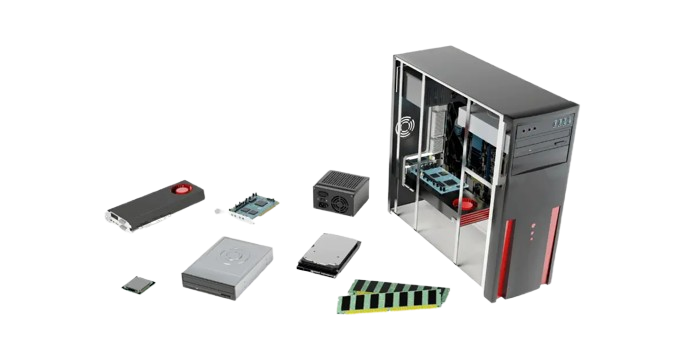
Put 40-50% of your gaming budget into the GPU
Your graphics card is the single biggest factor in gaming performance. It renders every frame you see, determines your visual settings, and directly impacts your FPS and frametime stability.
A $300 GPU paired with a $150 CPU will destroy games. A $300 CPU with a $150 GPU will struggle. The math is simple: the GPU does the heavy lifting in gaming workloads, so it deserves the biggest slice of your budget.
For a $1,000 build, that means $400-450 should go to your graphics card. On a $1,500 setup, you’re looking at $700-800. This rule holds across most budget tiers because GPU performance scales directly with price, and higher resolutions demand even more graphics horsepower.
Exception: If you’re streaming without a capture card or running simulation-heavy games like Cities Skylines, you’ll need to shift 5-10% from GPU to CPU. But for pure gaming? GPU first, always.

Spend 15-20% on a CPU that won’t bottleneck
Your processor matters, but not as much as beginners think. A mid-range CPU like a Ryzen 5 or Intel i5 handles the vast majority of games without breaking a sweat. Going from an i5 to an i9 might net you 5-10% better performance in specific titles, but that same money in your GPU could give you 40-50% more frames.
The goal is balance, your CPU should feed frames to your GPU fast enough that neither component sits idle. For 1080p high-refresh gaming, pair something like an RTX 4060 Ti with a Ryzen 5 7600. For 1440p, an RTX 4070 Super works great with an i5-14600K.
One practical test: check GPU utilization while gaming. If it’s consistently at 95-99%, your CPU is keeping up just fine. If it’s bouncing between 60-80%, you’ve got a CPU bottleneck and should reallocate budget.
Streaming changes this equation completely. Encoding live video hammers your CPU, so if you’re broadcasting gameplay to Twitch without dedicated hardware, bump CPU allocation to 25-30% and grab a Ryzen 7 or i7 with extra cores.
Allocate 8-10% for 16GB of RAM (32GB for Multitaskers)
Memory capacity matters more than speed for gaming. 16GB is the baseline for modern titles enough for the game, Windows, and a browser with a few tabs. Going to 32GB helps if you stream, run Discord and Spotify, or keep dozens of Chrome tabs open while gaming.
RAM speed does affect performance, but the gains are modest. DDR4-3200 or DDR5-5600 hits the sweet spot of price and performance. Paying extra for DDR5-7200 might give you 2-3% better frametime consistency in specific games, but it won’t fix a weak GPU.
On a $1,000 build, you’re looking at $70-90 for a quality 16GB kit. For $1,500+ builds where you’re already running a strong GPU and CPU, bumping to 32GB makes sense and costs around $110-140.
Pro tip: Verify your motherboard’s RAM compatibility before buying. Some budget boards don’t reliably run high-speed kits, which means you’ll pay for 6000MHz but run at 4800MHz.
Reserve 8-10% for Fast, Reliable Storage
An NVMe SSD doesn’t boost FPS, but it transforms how your system feels. Games load in seconds instead of minutes, Windows boots instantly, and you won’t sit through endless “optimizing shaders” screens.
1TB is the comfortable starting point. Modern AAA games clock in at 100-150GB each Call of Duty alone can eat 200GB. A 500GB drive fills up fast, forcing you to constantly juggle installs.
You don’t need the absolute fastest Gen5 drive. A mid-tier Gen3 or Gen4 NVMe from Samsung, WD, or Crucial delivers 3,000-7,000 MB/s read speeds, which is more than enough for gaming. Upgrading from a Gen3 to Gen5 drive might shave 0.5 seconds off a load screen, but it won’t improve frametime or reduce stutter.
On a $1,000 build, budget $80-100 for 1TB. For $1,500+, consider starting with 2TB ($140-180) or buying 1TB now and adding another drive later when prices drop or you actually need the space.
Don’t cheap out on the PSU (Budget 7-9%)
A bad power supply won’t just fail it can take your entire system with it. Skimping $30 here to save money is the worst trade-off in PC building. Quality PSUs from Corsair, EVGA, Seasonic, or MSI come with proper protections, stable voltage delivery, and real-world wattage ratings.
Target 80 Plus Bronze or better. The efficiency rating matters because it indicates build quality and component selection, not just power savings. A good 650-750W unit handles most single-GPU builds with headroom for future upgrades.
Calculate wattage by adding your GPU and CPU power draw, then add 20-30%. An RTX 4070 Super (220W) plus Ryzen 7 7700X (105W) totals ~325W under load. Add another 100W for the rest of your system, and you’re at 425W a 650W PSU covers you comfortably.
On a $1,000 build, spend $70-90. For $1,500+, a modular 750-850W Gold-rated unit ($100-130) gives you cleaner cable management and efficiency that pays back over time through lower power bills.
Balance 5-8% between motherboard and case
Your motherboard needs to support your CPU socket, have enough slots for your RAM and storage, and offer basic connectivity. Unless you need specific features like WiFi 6E, multiple M.2 slots, or advanced overclocking support, a B550 (AMD) or B660 (Intel) board in the $100-150 range delivers everything a gaming PC needs.
Avoid the trap of buying a $250 motherboard for a $200 CPU. That money belongs in your GPU or a capacity upgrade elsewhere. The board’s job is compatibility and stability, not performance a $120 board runs games identically to a $300 board when paired with the same components.
Cases are similar. You don’t need tempered glass, RGB fans, and USB-C front panels to game well. You do need good airflow. Look for mesh front panels, space for at least two intake and two exhaust fans, and enough clearance for your GPU length and CPU cooler height.
A functional case costs $50-80. Spending $150+ on a case makes sense only if aesthetics matter to you personally it won’t improve FPS, frametime, or thermals compared to a well-ventilated budget option.
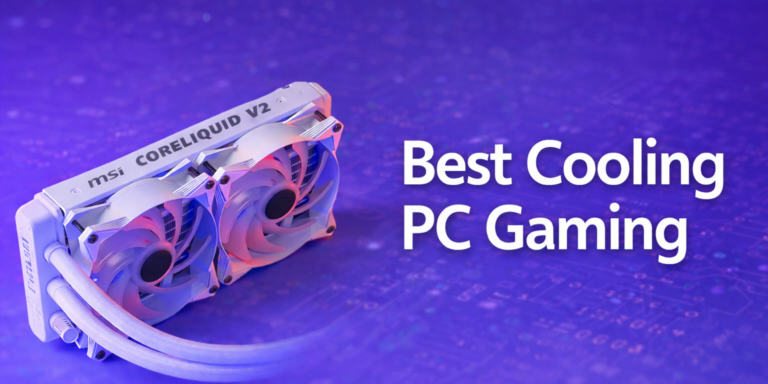
Plan for cooling based on your CPU choice
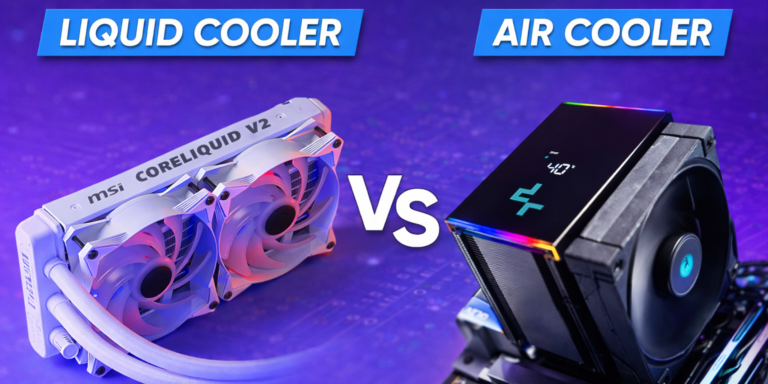
Stock coolers work fine for lower-power CPUs like the Ryzen 5 7600 or i5-13400. They’ll keep temps reasonable and noise acceptable under normal gaming loads. If you’re running a higher-TDP chip like a Ryzen 7 7800X3D or i7-14700K, budget $30-50 for a tower air cooler or $80-120 for a 240mm AIO.
Better cooling doesn’t boost performance directly, but it prevents thermal throttling and reduces noise. A CPU that bounces between 85-95°C under load will occasionally drop clocks to cool down, causing small frametime spikes. Keeping it at 70-75°C maintains consistent performance and extends component lifespan.
Test your cooling under load with a benchmark or stress test. If your CPU hits 90°C+ during a 30-minute gaming session, you need better airflow or a stronger cooler. Most modern CPUs throttle around 95-100°C, so staying well below that threshold ensures stable clocks and predictable frametimes.
Budget allocation: Factor $0-50 depending on your CPU choice. High-end chips need aftermarket cooling; budget options run fine on stock.
Gaming pc budget split examples by use case
$700 Esports build (1080p High Refresh)
CPU: $120-150 (17-21%) – Ryzen 5 5600 or i5-12400F
RAM: $60-70 (9-10%) – 16GB DDR4-3200
Storage: $50-60 (7-9%) – 500GB NVMe
Motherboard: $80-100 (11-14%) – B550 or B660
PSU: $60-70 (9-10%) – 600W 80+ Bronze
Case: $50-60 (7-9%) – Mesh front budget case
$1,000 balanced 1080p/1440p build
CPU: $180-220 (18-22%) – Ryzen 5 7600 or i5-14600KF
RAM: $80-90 (8-9%) – 16GB DDR5-5600
Storage: $80-100 (8-10%) – 1TB NVMe
Motherboard: $120-140 (12-14%) – B650 or B760
PSU: $70-90 (7-9%) – 650W 80+ Bronze
Case: $60-80 (6-8%) – Airflow-focused mid-tower
$1,500 high-performance 1440p build
CPU: $250-300 (17-20%) – Ryzen 7 7800X3D or i7-14700K
RAM: $110-140 (7-9%) – 32GB DDR5-6000
Storage: $140-180 (9-12%) – 2TB NVMe
Motherboard: $150-180 (10-12%) – B650 or Z790
PSU: $100-130 (7-9%) – 750W 80+ Gold modular
Case: $80-100 (5-7%) – Quality mesh case with good airflow
Cooling: $40-60 (3-4%) – Tower air cooler or 240mm AIO
These splits prioritize gaming performance while maintaining system stability and leaving room for future upgrades.
Where to save without hurting performance
RGB lighting, tempered glass panels, and addressable fan ecosystems look great but add zero FPS. A $60 mesh case with good ventilation performs identically to a $150 showcase build.
Extreme motherboard features rarely matter for gaming. Unless you’re running a home server or need 10Gb Ethernet, a mid-range board handles everything. Save the $100+ difference and put it into your GPU.
Oversized CPU coolers make sense only for high-TDP chips or noise-sensitive setups. If you’re running a 65W CPU, the stock cooler or a basic tower unit works fine no need for a $120 AIO.
Starting with one SSD and adding more later when prices drop or you fill up your drive saves money upfront without compromising performance. Buy what you need now, expand when necessary.
The key is understanding which components affect gaming and which affect aesthetics or convenience. Save on the latter, invest in the former.
Common budget mistakes and how to fix them
Overspending on CPU while underbuying GPU: You end up with an i9-14900K and an RTX 4060, wondering why games don’t hit 144 FPS. Fix: Drop to an i5 or Ryzen 5 and upgrade to an RTX 4070. Your framerates will double.
Buying a cheap PSU to save $30: It fails under load or worse, damages your components. Fix: Spend $70-90 on a quality 80+ Bronze unit from a real brand. The reliability is worth every penny.
Choosing a case with bad airflow: Solid front panels look clean but choke components, causing thermal throttling and noise. Fix: Pick a mesh-front case with proper ventilation. Your temps will drop 10-15°C.
Forgetting peripheral costs: You budget $1,000 for the tower, then realize you need another $200-400 for a monitor, keyboard, mouse, and Windows license. Fix: Account for the full build cost before buying parts.
Skipping compatibility checks: Buying DDR5 RAM for a DDR4 board, or a GPU that doesn’t fit your case. Fix: Use PCPartPicker’s compatibility filter to verify everything works together before you buy.
Making Your Budget Work Smarter
Use your target resolution and refresh rate to guide GPU choice first. For 1080p 144Hz, an RTX 4060 or RX 7600 hits the mark. For 1440p 165Hz, you need an RTX 4070 Super or RX 7900 GRE. Everything else supports that foundation.
Check real-world benchmarks that show 1% lows and frametime graphs, not just average FPS. A card that averages 120 FPS but dips to 60 FPS will feel worse than one that holds a steady 100 FPS with 90 FPS lows.
If your budget is tight, compromise on aesthetics and upgrade paths not core performance parts. A cheaper case and motherboard won’t hurt framerates. A weak GPU will.
Test your final parts list on PCPartPicker to verify compatibility and catch issues like RAM speed mismatches or insufficient PSU wattage before you buy. if you want exact price breakdowns for every budget, this complete guide to gaming PC costs has a simple table for each range from $600 up to $2,000+ definitely worth bookmarking before you start shopping.
Frequently asked questions
How do i balance performance and aesthetics in a gaming pc on a budget?
Focus most of your budget on parts that actually impact gameplay like the gpu, cpu, and enough ram. get a case with good airflow but skip fancy rgb and glass panels unless that stuff matters more to you than raw frames. if money’s tight, always pick better components over looks.
Is 16gb or 32gb of ram better for gaming right now?
16gb is enough for nearly all current games if you don’t have tons of background apps running. 32gb makes sense if you’re streaming, multitasking hard, or want a little future-proofing.
How much should i spend on storage for a new build?
Plan for 1tb if you’re playing modern games, since huge installs are the norm. go 2tb if you want a massive steam library or hate uninstalling stuff. nvme ssd is ideal for speed.
Do i need an expensive motherboard for gaming?
Nope, you just need something stable and compatible with your gpu/cpu combo. more expensive boards only make sense if you need extra slots, ports, or plan to overclock hard.
What should i do if my build is suddenly over budget?
Trim extra features you don’t need. swap out for a cheaper case or motherboard, scale back to 16gb ram if you had more, and absolutely never skimp on the psu or gpu. always double check compatibility before clicking buy.