Summary
Fresh Windows 11 install, brand new GPU, and your frame rates are still disappointing. Sound familiar? you wonder how to optimize your windows 11 for gaming? Here’s the thing most people don’t realize: Windows 11 ships configured for the average office worker, not for you. Security features, background services, and power management defaults are all set to protect and balance a general-purpose machine. That’s fine for someone writing spreadsheets. It’s a quiet fps killer for a gaming PC. To properly optimize Windows 11 for gaming you need to go in and deliberately change about a dozen settings that Microsoft never tells you exist.
I’ve been through this process on multiple builds and i’ve noticed the same pattern every time. Most of the gains come from just three or four changes. The rest are marginal. So instead of giving you a wall of fifty tweaks that collectively move the needle by two percent, this guide focuses on what actually makes a measurable difference in real games. We’re talking frame rates, 1% lows, and stutter reduction. That’s the goal.
Before You Touch Anything: Create a Restore Point
This takes sixty seconds and it has saved me from a full reinstall at least twice. Search “Create a restore point” in the Start Menu, click it, hit “Create,” give it a name like “Before gaming tweaks,” and you’re done. If anything goes sideways after you start changing settings, you can roll the system back to exactly this point without losing your files. Do it before every session of tweaks. It’s a habit worth building.
The Biggest Win: Disable VBS and Memory Integrity
Virtualization-Based Security is the single most impactful setting for anyone looking to optimize Windows 11 for gaming and it’s on by default on every fresh installation. Independent testing shows it can cost you around 5 percent in average FPS across all games, but CPU-intensive titles take a much bigger hit. Microsoft Flight Simulator shows 10 to 15 percent improvements when it’s disabled. Cyberpunk 2077 gains 5 to 7 percent. For competitive players running Fortnite at high refresh rates, 5 to 7 percent more fps is the difference between a consistent 144 and dropping frames at critical moments.
To check if VBS is running, press Windows + R and type msinfo32 and hit Enter. Look for the line that says “Virtualization-based security.” If it says “Running” you’re losing performance right now. To disable it, go to Windows Security, then Device Security, then Core Isolation Details, and toggle Memory Integrity off. Restart when prompted. Then open the same msinfo32 window again after rebooting to confirm it now says “Not enabled.”
Power Plan: Unlock Ultimate Performance
Most builds ship on Balanced power plan, which allows the CPU to downclock aggressively when it thinks you don’t need full power. In games that demand sudden CPU bursts, like open world titles calling for rapid asset streaming or competitive shooters with lots of simultaneous player events, that downclocking introduces micro-stutters and inconsistent 1% lows. High Performance solves most of it, but there’s a hidden tier above that called Ultimate Performance that Windows doesn’t show by default.
To unlock it, open PowerShell as Administrator and run this command exactly:
powercfg -duplicatescheme e9a42b02-d5df-448d-aa00-03f14749eb61
After running it, go to Settings and search “Choose a power plan.” Ultimate Performance will now appear as an option. Select it. From my experience this makes the biggest difference in games that are CPU-bound or in situations where you’re pushing for consistent high refresh rates in something like Valorant or CS2.
Game Mode and Hardware-Accelerated GPU Scheduling
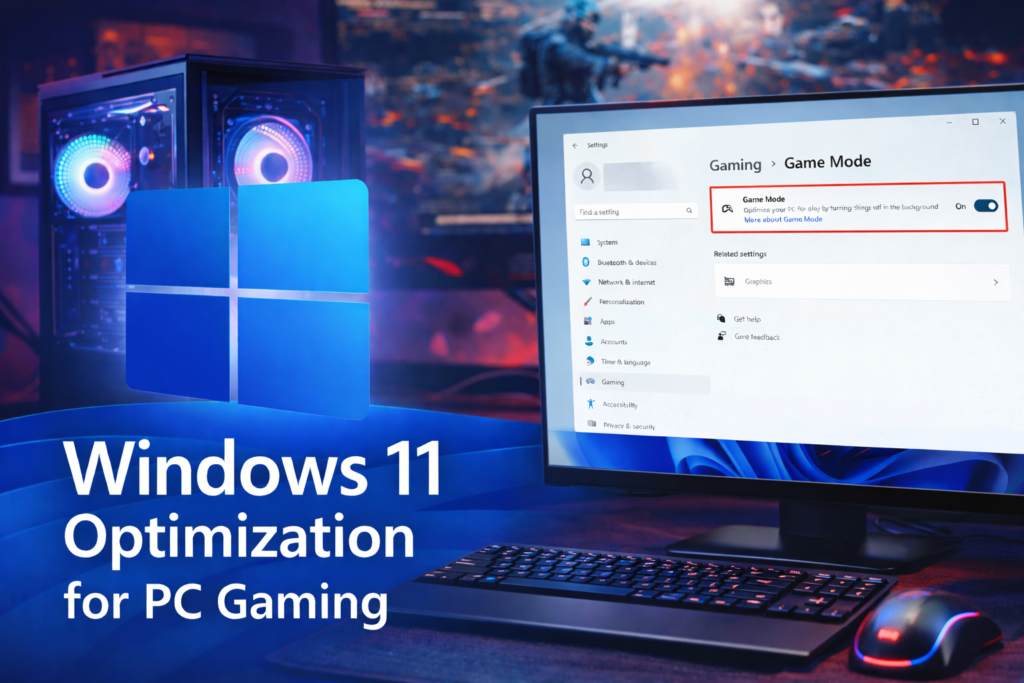
Game Mode is one of those features that gets dismissed online because early versions of it were unreliable, but it’s been significantly improved on modern Windows 11 builds. What it actually does is tell Windows to stop background processes like Windows Update from competing with your game for CPU cycles the moment a game is detected as the foreground application. Turn it on. There’s no good reason to have it off. Go to Settings, search “Game Mode,” and toggle it on.
Hardware-Accelerated GPU Scheduling, or HAGS, reduces the CPU overhead involved in managing your GPU’s frame queue. It offloads that scheduling work directly to the GPU, which reduces frame time variance and improves 1% lows especially at high refresh rates. You’ll find it at Settings > System > Display > Graphics > Default graphics settings. Toggle it on and restart. This one is particularly noticeable in games where your average fps is fine but your experience still feels choppy.
GPU Drivers and Shader Cache Size
How to optimize Windows 11 for gaming without touching GPU drivers isn’t really possible because outdated drivers are one of the most common causes of performance regression after Windows updates. Nvidia, AMD, and Intel all release Game Ready updates timed around major title launches that contain specific optimizations for those games. Skipping those means you’re leaving real performance on the table.
For Nvidia users specifically, there’s one Control Panel setting that most people miss. Open Nvidia Control Panel, go to Manage 3D Settings, find Shader Cache Size in the list, and set it to 10GB. If your cache limit is too low, the GPU quietly deletes older shaders when it runs out of space. When you revisit an area in a game that needed those deleted shaders, it has to recompile them on the fly, which causes the visible stutter spikes that people often blame on their RAM or CPU. Setting the cache to 10GB prevents this in virtually every game. Also find Power Management Mode in the same list and set it to Prefer Maximum Performance.
Once your drivers are current and your settings are dialed in, your GPU is in the best possible state for the next step some players want to take. If you want to squeeze even more performance out of your graphics card beyond what Windows settings allow, overclocking your GPU on Windows 11 is a natural progression from here and can add another 5 to 15 percent on top of everything you’ve already done.
| Setting | Where to Find It | Impact | Risk |
|---|---|---|---|
| Disable VBS / Memory Integrity | Windows Security > Core Isolation | High | Security |
| Ultimate Performance Power Plan | PowerShell command + Power Options | High | None |
| Game Mode On | Settings > Gaming > Game Mode | Medium | None |
| HAGS On | Settings > Display > Graphics | Medium | None |
| Nvidia Shader Cache = 10GB | Nvidia Control Panel > 3D Settings | High | None |
| Disable Xbox Game Bar | Settings > Gaming > Xbox Game Bar | Low | None |
| Disable Startup Apps | Task Manager > Startup Apps | Medium | None |
| Disable Discord Overlay | Discord > Settings > Game Overlay | Medium | None |
Kill the Background Noise
Open Task Manager (Ctrl + Shift + Esc), click the Startup Apps tab, and you’ll probably find ten to twenty things loading with Windows that have no reason to be there while you’re gaming. OneDrive syncing in the background, Discord updating, your GPU companion software scanning for driver updates, browser startup boosts. Every one of those takes RAM and CPU cycles away from your game. Disable anything you don’t actively need running at boot. You can always launch these manually when you want them.
The Discord in-game overlay deserves its own mention because it’s one of the most consistent sources of stutter that players misdiagnose as a hardware or driver problem. Most players I know who complained about random frame drops in perfectly capable systems had the Discord overlay enabled. Turn it off in Discord’s settings under Overlay and test your games. The difference is sometimes startling.
While you’re cleaning up background processes, check your SSD’s free space too. Keeping at least 15 to 20 percent free on the drive where Windows and your games are installed helps avoid the hidden performance degradation that comes from a nearly full drive. Modern games dump enormous shader caches and temporary files during play, and a drive with no breathing room handles those poorly. This same principle applies whether you’re tuning a new rig or squeezing more life out of an older entry-level build you put together on a budget.
Optimizing Windows 11 for Gaming: The Settings You Can Skip
There’s a category of Windows 11 tweaks that circulates endlessly in gaming forums that simply don’t move the needle in real games. Turning off visual effects like window animations saves a few milliseconds of CPU time at best and you’ll never feel it in a GPU-bound game. Disabling Hyper-V sounds dramatic but unless you’re actively using virtual machines it’s already not running and costs you nothing. Registry “gaming tweaks” from YouTube videos are mostly placebo. I usually skip the entire category of tweaks that can’t show a benchmark improvement in a real game title because the optimization time is better spent elsewhere.
The same goes for chasing optimizing windows 11 for gaming through third-party “optimizer” applications. Most of them disable random services that sound unnecessary until you realize Bluetooth stopped working or your audio drivers started behaving erratically. Stick to the settings in this guide and you’ve covered everything that measurably matters.
At the end of it, optimizing windows 11 for gaming is a one-time investment of about an hour that pays off every session afterward. Do the three or four high-impact changes, verify with a benchmark or frame rate overlay that things actually improved, and then stop. More tweaks past a certain point introduce instability risk for diminishing returns. Get the gains that are there and go play.
Frequently asked questions
Is Windows 11 ok for a gaming PC?
Yes, and in 2026 it’s actually become a better gaming platform than Windows 10 for most modern hardware. Windows 11 includes DirectStorage support which dramatically reduces game load times on NVMe SSDs, an improved Game Mode that’s more reliable than older versions, and better scheduling for hybrid-core processors. The reputation for poor gaming performance comes from its default security settings, specifically VBS and Memory Integrity, which are on by default and do reduce fps. Once you disable those on a dedicated gaming machine and apply the other tweaks in this guide, Windows 11 matches or exceeds Windows 10 performance on comparable hardware. Microsoft also publicly committed in late 2025 to improving background workload management and scheduling specifically for gaming through 2026, so the platform is heading in the right direction.
How to optimize Windows 11 for performance?
For pure performance across the whole system, not just gaming, the key levers are the power plan (Ultimate Performance prevents CPU downclocking), disabling VBS and Memory Integrity (reduces virtualization overhead), managing startup applications and background processes (frees RAM and CPU for active tasks), keeping drivers current for your GPU and chipset, and ensuring your SSD has at least 15 to 20 percent free space for healthy read and write performance. For gaming specifically, also enable Hardware-Accelerated GPU Scheduling and Game Mode, and if you’re on Nvidia, set your shader cache size to 10GB in the Control Panel.
How do I improve Windows 11 gaming performance?
The highest-impact steps in order are: disable Virtualization-Based Security and Memory Integrity in Windows Security settings (recovers up to 5 to 15 percent fps in CPU-intensive games), switch your power plan to Ultimate Performance using a PowerShell command, update your GPU drivers through the manufacturer’s software rather than Device Manager, enable Game Mode and Hardware-Accelerated GPU Scheduling in Settings, and clean up startup applications through Task Manager. Doing these five things alone covers the majority of what’s available from software optimization without touching anything risky.