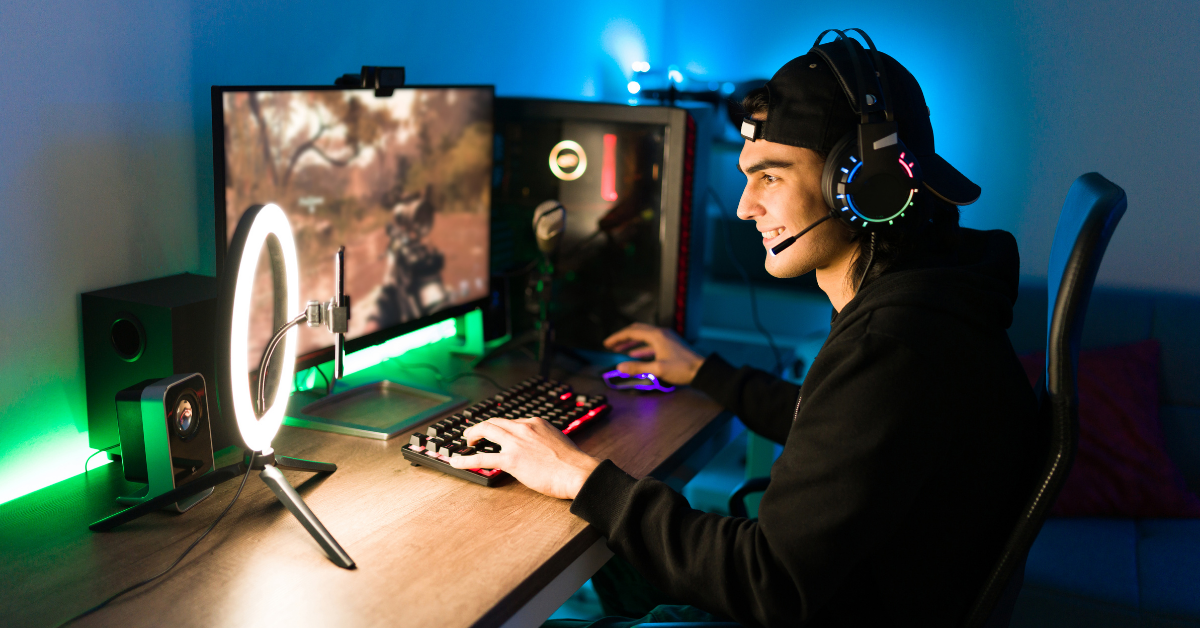
Got a gaming headset but feel like the audio could be way better? You’re not alone. Most people plug in their headset and call it good, but there’s actually a ton you can do to make your audio clearer, more immersive, and just plain better for gaming.
Whether you’re trying to hear footsteps in Valorant or just want your single-player games to sound incredible, let’s walk through how to actually get the most out of your gaming headset on PC.
Essential PC Audio Software and Drivers
Update Your Windows Audio Drivers
First things first – when was the last time you updated your audio drivers? Probably never, right? Outdated drivers cause glitches, crackling, and can keep you from using newer audio features.
Go to Windows Update and check for driver updates. If you have Realtek audio or any other onboard sound chip, check the manufacturer’s website too. Headset firmware also gets updates sometimes, so check your headset brand’s app or website.
Fresh drivers fix a surprising number of audio problems and sometimes unlock features you didn’t even know you had.
Virtual Surround Technologies
Windows has built-in spatial audio that can make your headset sound way more immersive. Right-click the speaker icon in your taskbar, go to Spatial Sound, and try Windows Sonic for Headphones. It’s completely free and works with any headset.
If you want to step it up, Dolby Atmos for Headphones and DTS Headphone X are paid options that some people swear by. They create virtual surround sound so you can pinpoint where sounds are coming from in 3D space. Massive difference in games like Warzone or Apex where positioning matters.
You don’t need a fancy multi-speaker setup. These technologies trick your brain into hearing directional audio through regular stereo headphones.
Audio Enhancement Software
Most gaming headset brands have their own software. SteelSeries has Sonar, ASUS has Sonic Studio, and Creative has Sound Blaster software. These let you customize EQ settings, add surround effects, and reduce background noise on your mic.
Even your motherboard might have EQ utilities built in. Poke around in whatever audio software came with your PC or headset.
For voice chat, Discord has its own settings worth tweaking. Voicemeeter and NVIDIA Broadcast are also clutch if you stream or want really clean mic audio with noise cancellation.
Sound Card vs Onboard Audio
Modern motherboards have pretty solid onboard audio, especially on higher-end boards. For most gamers, it’s totally fine, and you don’t need a dedicated sound card.
But if you’re an audiophile or your motherboard audio just sounds bad, a USB DAC or amp can make a huge difference. Something like a Sound Blaster G3 or FiiO E10K will give you cleaner audio and more power to drive high-impedance headphones.
Only worth it if you really care about audio quality or have a cheap motherboard with noisy onboard sound.
System Settings Check
Make sure Windows actually recognizes your headset. Open Sound settings and set your headset as the default playback and recording device. Check the volume mixer to make sure nothing is muted or turned way down.
In games, make sure you’re outputting to stereo or whatever surround mode you enabled. Some games default to speakers, which sounds weird through headphones.
Also, check Windows privacy settings for microphone permissions. If apps can’t access your mic, obviously voice chat won’t work.
Choosing the Right Over-Ear Headset
Wired vs Wireless
Over-ear gaming headsets are where it’s at for comfort and sound quality. But wired or wireless?
Wired headsets have basically zero latency, and you never worry about batteries dying. Just plug in via USB or 3.5mm, and you’re good. They’re usually cheaper too for the same audio quality.
Wireless gives you freedom to move around without cable management. Modern 2.4GHz wireless headsets have super low latency now – under 20 milliseconds, which you won’t notice. Bluetooth is more universal but has higher latency, so stick with dedicated wireless dongles for gaming.
The trade-off is you gotta remember to charge them, and they cost more.
Sound Profile – Stereo vs Multi-Driver
Most gaming headsets use a single driver in each ear cup and simulate surround sound through software. This works great and keeps costs down.
Some premium headsets have multiple drivers per ear to create true surround sound. Sounds cool, but honestly, good stereo headphones with virtual surround usually sound better than cheap multi-driver setups.
For gaming, virtual surround through Windows Sonic or Dolby Atmos with quality stereo drivers is the sweet spot.
Microphone Quality
If you play multiplayer or stream, you need a good mic. Boom mics that position near your mouth always sound better than inline mics dangling from the cable.
Look for noise-canceling or beamforming mics that filter out keyboard clicks and background noise. Your teammates will thank you.
Detachable mics are nice because you can remove them when just listening to music or watching videos.
Comfort and Build Quality
You might wear your headset for hours, so comfort matters huge. Over-ear padding should fully cover your ears without pressing on them. The headband needs good padding to distribute weight.
Clamping force is tricky – too tight gives you headaches, too loose and they slide around. Lightweight materials and breathable fabric help prevent sweating.
Durability-wise, look for detachable cables and replaceable parts. Metal frames last longer than all plastic.
PC Compatibility
Make sure your headset works with Windows. USB headsets are plug and play and bypass your motherboard’s audio. 3.5mm works everywhere, but quality depends on your audio output.
Most gaming headsets work fine on PC, but double-check compatibility, especially for wireless models. Some are console-focused and might not have PC software support.
If you want specific headset recommendations, check out our guide on the best gaming headsets 2025 where we break down top models for every budget and use case.
Setting Up and Tuning Your Gaming Audio
Surround Sound Setup
Enabling surround in Windows is easy. Go to Control Panel, click Sound, find your headset, hit Properties, then the Spatial Sound tab. Choose Windows Sonic or whatever option you want.
Some games let you select surround output in their audio settings too. Usually, you’ll see options for stereo, 5.1, or 7.1 surround.
If you have headset software, it might have its own surround settings. Don’t stack multiple surround effects though – pick one and stick with it, or things get muddy.
Equalizer and Profiles
EQ lets you boost or cut specific frequencies. Most headset apps have sliders for bass, mids, and treble.
For competitive FPS games, boost the mids where footsteps live. For immersive single-player games, boost bass for explosions and atmosphere. For voice clarity, boost mids and highs.
Save different profiles for different games. Some headsets let you switch profiles on the fly, which is super convenient.
Windows also has basic EQ in sound settings under enhancements, but headset software usually gives you more control.
In-Game Audio Settings
Always check audio settings in each game. Set your headset as the output device. Toggle virtual surround on or off based on what sounds better to you.
Games often have separate sliders for music, sound effects, and dialogue. Turn down music if you need to hear footsteps clearly.
Some games have audio presets like night mode that compress dynamic range so quiet sounds are louder and loud sounds don’t blow your ears out. Useful if you game late at night.
Volume Leveling and Safety
Windows has a loudness equalization feature that makes quiet sounds louder and prevents sudden loud noises from destroying your ears. Find it under sound settings in the enhancements tab.
Seriously though, don’t crank your volume to max all the time. Hearing damage is real and permanent. If people around you can hear your headset, you’re too loud.
Take breaks every hour or so to give your ears a rest. Tinnitus sucks, and it’s not worth it.
Troubleshooting Common Issues
If your audio cuts out or sounds crackly, try unplugging and replugging your headset. Use a different USB port – sometimes certain ports have issues.
Restart the Windows audio service by opening Services and finding Windows Audio, then clicking Restart.
If an update broke something, you can roll back drivers in Device Manager. Right-click your audio device, Properties, Driver tab, Roll Back Driver.
Check if your headset’s mute button is on. Sounds obvious, but happens more than you’d think.
Gaming Use Cases and Priorities
Competitive Gaming
For competitive play, you want pinpoint positional audio. You need to hear exactly where footsteps are coming from to pre-aim or rotate.
Low latency is critical. Wired headsets have an edge here. Even 20 milliseconds can matter at high-level play.
Some pro gamers actually prefer stereo over surround because good stereo imaging is more accurate than muddy virtual surround. Experiment with both.
Windows Sonic or Dolby Atmos can sharpen your spatial awareness in games like Valorant, Apex, or Warzone. Just make sure it’s actually helping and not adding artificial reverb that masks sounds.
Immersive Single Player and RPGs
For story-driven games and RPGs, you want a wide soundstage and deep bass. These games are designed to sound cinematic, so let them shine.
Over-ear headsets with rich surround sound make game worlds feel huge. Whether it’s hardware surround or high-quality virtual surround, both work.
Comfort is extra important because you might play for 6 hours straight in a massive RPG. Make sure your headset doesn’t hurt after hour two.
Voice Chat and Streaming
If you stream or spend tons of time in Discord, mic quality matters as much as audio quality. Your teammates or viewers need to understand you clearly.
Look for headsets with noise-canceling mics that filter out keyboard and mouse sounds. Or use software like NVIDIA Broadcast or Krisp for AI noise removal.
Some headsets and apps let you mix game audio and voice chat independently. Super useful for balancing so you can hear callouts without missing in-game sounds.
Streamers wear headsets for hours, so lightweight, comfortable designs are worth paying extra for.
Music and Media
Gamers don’t just game. If you listen to music or watch movies, your headset should handle that well too.
Headsets with flat frequency response or premium drivers work better for music. Too much bass tuning for games can make music sound weird.
If audio quality outside gaming matters to you, look for headsets marketed as hybrid or audiophile gaming headsets. They cost more but sound better across the board.
VR and Spatial Audio
If you play VR games on PC, audio is huge for immersion. VR relies on spatial audio to trick your brain into believing you’re actually there.
Windows Mixed Reality and SteamVR use the same surround technologies. Some VR headsets have built-in audio, but if you use separate headphones, over-ear is the way to go.
Open-back headsets can feel more natural in VR because they don’t completely isolate you. But closed-back gives better bass and immersion. Personal preference.
Budget vs Premium
You don’t need to spend 300 dollars to get good gaming audio. Affordable wired headsets under 100 bucks can sound great if you set them up right.
Premium wireless flagships with all the bells and whistles are awesome if you have the budget. Active noise canceling, swappable batteries, premium drivers, the works.
Figure out what you actually need. Competitive FPS player? Prioritize positional accuracy and low latency over fancy features. Single-player gamer? Go for comfort and soundstage.
Wrapping It All Up
Good gaming audio is half hardware, half software. You can have a killer headset, but if your drivers are trash and settings are default, you’re leaving performance on the table.
Start with the basics – update your drivers, enable spatial audio in Windows, and tweak your EQ for the games you play. That alone will make a massive difference.
Then make sure you have the right headset for your needs. Over-ear is the way to go for comfort and sound quality. Wired for competitive low latency, wireless for convenience and freedom.
Spend time in your headset software and Windows sound settings. Save profiles for different games. Experiment with surround on and off to see what actually sounds better to you.
For detailed headset recommendations by use case and budget, check out our full guide on the best gaming headsets for 2025. We break down specific models for competitive play, immersion, streaming, and budget gaming.
Your audio setup can genuinely improve your gaming experience and performance. Take an hour to dial everything in, and you’ll wonder how you ever played with default settings. Now go make your games sound as good as they look.